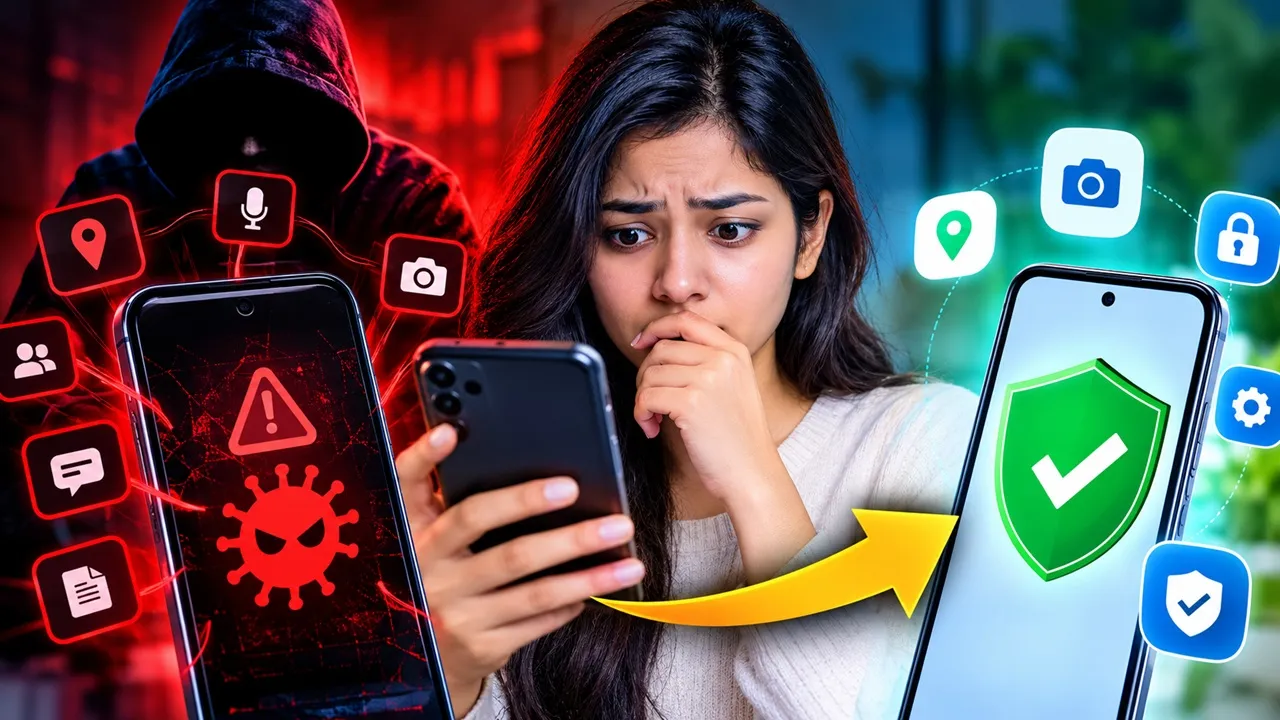
Your phone suddenly starts getting hot. The battery that normally lasts all day is disappearing before dinner. Strange pop-ups appear when you are not even browsing, and an app you don’t remember installing seems to have access to your microphone, camera or location.
Is your phone infected with spyware or malware?
Not necessarily.
Those symptoms can have completely harmless explanations. But if several unusual things start happening together, it is worth checking your phone instead of simply ignoring them.
The good news is that you don’t need to be a cybersecurity expert to perform a basic security check. Android and iPhone both provide built-in tools that can help you identify suspicious apps, review permissions and protect your personal information.
Here is how to check your phone step by step.
What Is the Difference Between Malware and Spyware?
Before checking your phone, it helps to understand what you are looking for.
Malware is a broad term for malicious software designed to cause harm, steal information, disrupt a device or perform unwanted activities.
Spyware is a type of malicious software designed primarily to monitor or collect information. Depending on the software and permissions involved, this can include personal information, activity or other sensitive data.
However, not every suspicious-looking app is spyware. An app draining your battery or using data could simply be poorly optimized.
That is why you should look for multiple warning signs instead of relying on one symptom. 10 Warning Signs That Deserve Your Attention
1. Your Phone Suddenly Becomes Extremely Slow
If your phone has become noticeably slower without a clear reason, check what is running in the background.
Malicious software can consume processing power, memory or network resources. Google lists unusual slowness among possible signs of malware.
But don’t jump to conclusions.
A nearly full storage drive, an aging battery, a recent system update or a resource-heavy app can also make a phone feel slow.
What to check:
- Battery usage
- Storage space
- Recently installed apps
- Apps running in the background
- Available system updates
2. The Battery Suddenly Starts Disappearing
Battery drain is one of the most commonly mentioned warning signs—but it is also one of the easiest to misinterpret.
Instead of asking, “Is my battery draining fast?”, ask:
“Which app is using the battery?”
Open your phone’s battery settings and look for applications consuming an unusually large percentage of power.
If an unfamiliar application is consistently near the top of the list, investigate it.
One important caveat: battery usage can increase after a major operating-system update, during heavy gaming, video streaming, navigation or poor cellular reception. So battery drain by itself isn’t proof of spyware.
3. Your Phone Gets Hot When You’re Barely Using It
A phone becoming warm during gaming, charging or video recording is normal.
A phone repeatedly becoming unusually warm while sitting idle is more interesting.
Check:
- Which apps recently used the battery
- Whether an app is running in the background
- Whether your phone is installing an update
- Whether the device is connected to a weak cellular signal
- Whether the phone is charging
If an unfamiliar app is consuming resources while you are not using it, that deserves a closer look.
4. Strange Pop-Ups Keep Appearing
This is one of the more obvious warning signs.
If you repeatedly see:
“Your phone has a virus!”
or fake security warnings telling you to install an app, call a number or click a button, don’t interact with them.
Google identifies persistent pop-up advertisements and unexpected browser behavior as possible signs of unwanted or malicious software.
A website can also generate deceptive pop-ups without your phone actually being infected.
So don’t automatically install an app simply because a pop-up claims your device is infected.
Close the page and investigate the source instead.
5. You Find an App You Don’t Remember Installing
This is one of the most useful checks you can perform.
Go through your complete app list and look for:
- Apps you don’t recognize
- Apps you don’t remember installing
- Apps with strange names or icons
- Apps that appeared around the time the problem started
- Apps installed outside your normal app store
Google recommends removing apps that you don’t trust or did not obtain from the Google Play Store when dealing with suspected malware.
Before deleting an unfamiliar app, however, make sure it isn’t a legitimate system component or manufacturer application.
How to Check Your Android Phone for Malware
Android provides one of the easiest built-in ways to perform an initial malware check.
Step 1: Run Google Play Protect
Open:
Google Play Store → Profile picture → Play Protect → Scan
Google Play Protect checks apps for potentially harmful behavior. It can also examine applications installed from sources outside Google Play. Depending on the situation, Play Protect can warn you, disable a harmful app or remove it.
Google recommends keeping Play Protect enabled.
Check This Setting Too
Go to:
Google Play Store → Profile picture → Play Protect → Settings
Make sure Scan apps with Play Protect is enabled.
If you regularly install APK files from outside Google Play, Google also provides an Improve harmful app detection option.
Step 2: Check Recently Installed Apps
Go through your applications and ask yourself:
“Do I know why this app is here?”
If the answer is no, investigate it before granting it additional permissions.
Pay particular attention to unfamiliar apps requesting access to sensitive functions such as:
- Accessibility features
- SMS
- Contacts
- Microphone
- Camera
- Location
- Notifications
- Files and photos
A permission isn’t automatically evidence of malware. Many legitimate applications need sensitive permissions to function.
The important question is whether the permission makes sense for what the app does.
Step 3: Review Your App Permissions
Don’t just check which apps are installed. Check what they can access.
Look through your privacy or permission settings and review which applications have access to:
Camera → Which apps can use it?
Microphone → Which apps can use it?
Location → Which apps know where you are?
Contacts → Which apps can access your address book?
Photos/Files → Which apps can access your personal data?
If you find an unfamiliar app with unusually powerful permissions, investigate it.
Step 4: Check for Android and Security Updates
Keeping your operating system updated is an important part of phone security.
On many Android devices, you can check:
Settings → System → Software updates
You should also look for:
Settings → Security & privacy → System & updates → Security update
The exact menu names can vary by manufacturer and Android version. Google recommends installing available Android and security updates when dealing with suspected malware.
How to Check an iPhone for Suspicious Activity
iPhones have a different security model, but there are still useful checks you can perform.
Step 1: Use Safety Check
On an iPhone running iOS 16 or later, go to:
Settings → Privacy & Security → Safety Check
Apple’s Safety Check lets you review who and what has access to your information. It can also help you review connected devices, app permissions and account security.
You can choose between:
Manage Sharing & Access
or
Emergency Reset
The second option is designed to quickly stop sharing information when you need to take immediate action.
Step 2: Check Your Apple Account Devices
Open your Apple Account settings and review the devices connected to your account.
If you see a device you don’t recognize, investigate it immediately.
An unknown device connected to your account is a much more meaningful security warning than something like ordinary battery drain.
Step 3: Pay Attention to Apple’s Malware Warning
If an iPhone or iPad displays a warning that a third-party application contains malware and cannot be opened, Apple recommends deleting that application.
Apple says its devices regularly check installed third-party apps for identified malware and can prevent a flagged application from opening.
In that situation, don’t ignore the warning simply because the app is something you use regularly.
What About Sophisticated Spyware?
This is where things become more complicated.
Highly sophisticated spyware is not the same thing as a random malicious APK or a suspicious browser pop-up.
Some advanced spyware attacks are designed to be extremely difficult for ordinary users to identify.
Apple says that when it detects activity consistent with certain mercenary spyware attacks, it may send a specific Apple Threat Notification. Apple also recommends keeping devices updated and using strong account security, and says Lockdown Mode can provide additional protection for people who have reason to believe they are individually targeted.
For most people, however, the more common security problems involve:
- Malicious apps
- Fake websites
- Phishing links
- Stolen passwords
- Unsafe APK files
- Account compromise
- Excessive app permissions
That is why basic security checks still matter.
Don’t Make This Common Mistake
One of the biggest mistakes people make is searching Google for:
“Phone virus cleaner”
and immediately installing the first app promising to “scan” the device.
Some legitimate security products exist, but a fake security application can create an even bigger problem.
If you’re using Android, start with Google Play Protect and your phone’s built-in security and privacy controls. Google says Play Protect is enabled by default and recommends keeping it on.
What to Do If You Actually Find Something Suspicious
If you identify an unfamiliar or malicious application, don’t panic.
On Android:
- Disconnect from the internet temporarily if you suspect active malicious activity.
- Run Google Play Protect.
- Remove suspicious applications.
- Install available security updates.
- Review app permissions.
- Check your Google Account security settings.
- Change important passwords if you have reason to believe they were exposed.
- Enable two-factor authentication.
- If the problem continues, consider a factory reset or contact your device manufacturer.
Google also recommends using its Security Checkup to review account security when dealing with suspected malware.
On iPhone:
- Delete an application if Apple explicitly warns that it contains malware.
- Run through Safety Check.
- Review devices connected to your Apple Account.
- Update iOS.
- Review app permissions.
- Change your Apple Account password if necessary.
- Enable two-factor authentication.
- If you receive an Apple Threat Notification, follow Apple’s specific guidance.
The 5-Minute Phone Security Check
If you don’t have time to investigate everything, start with these five checks:
1. Check installed apps
Do you recognize everything?
2. Check battery usage
Is an unfamiliar app consuming significant power?
3. Check permissions
Does an app have access it doesn’t logically need?
4. Run Play Protect on Android
Let Google’s built-in protection scan your apps.
5. Check your account devices
Look for unknown devices signed into your Google or Apple account.
These checks won’t guarantee that a device is completely free of sophisticated threats, but they can catch many common problems and give you a much clearer picture of what’s happening.
Don’t Panic Over One Strange Symptom
A hot phone doesn’t automatically mean spyware.
Fast battery drain doesn’t automatically mean someone is watching you.
A slow phone doesn’t automatically mean you’ve been hacked.
But an unfamiliar application + unusual permissions + strange pop-ups + unexplained account activity is a combination worth investigating.
The smartest approach is not to panic. Start with the security tools already built into your phone, identify what changed, remove anything you don’t trust and keep your operating system and apps updated.
Your phone contains far more personal information than most people realize. Spending five minutes checking its security settings today can be far more useful than waiting until something actually goes wrong.
Related News: